Guide #12
Optional Module: Workforce
Enable Workforce and run people operations with attendance, leave, and employee records.
Optional Module: Workforce
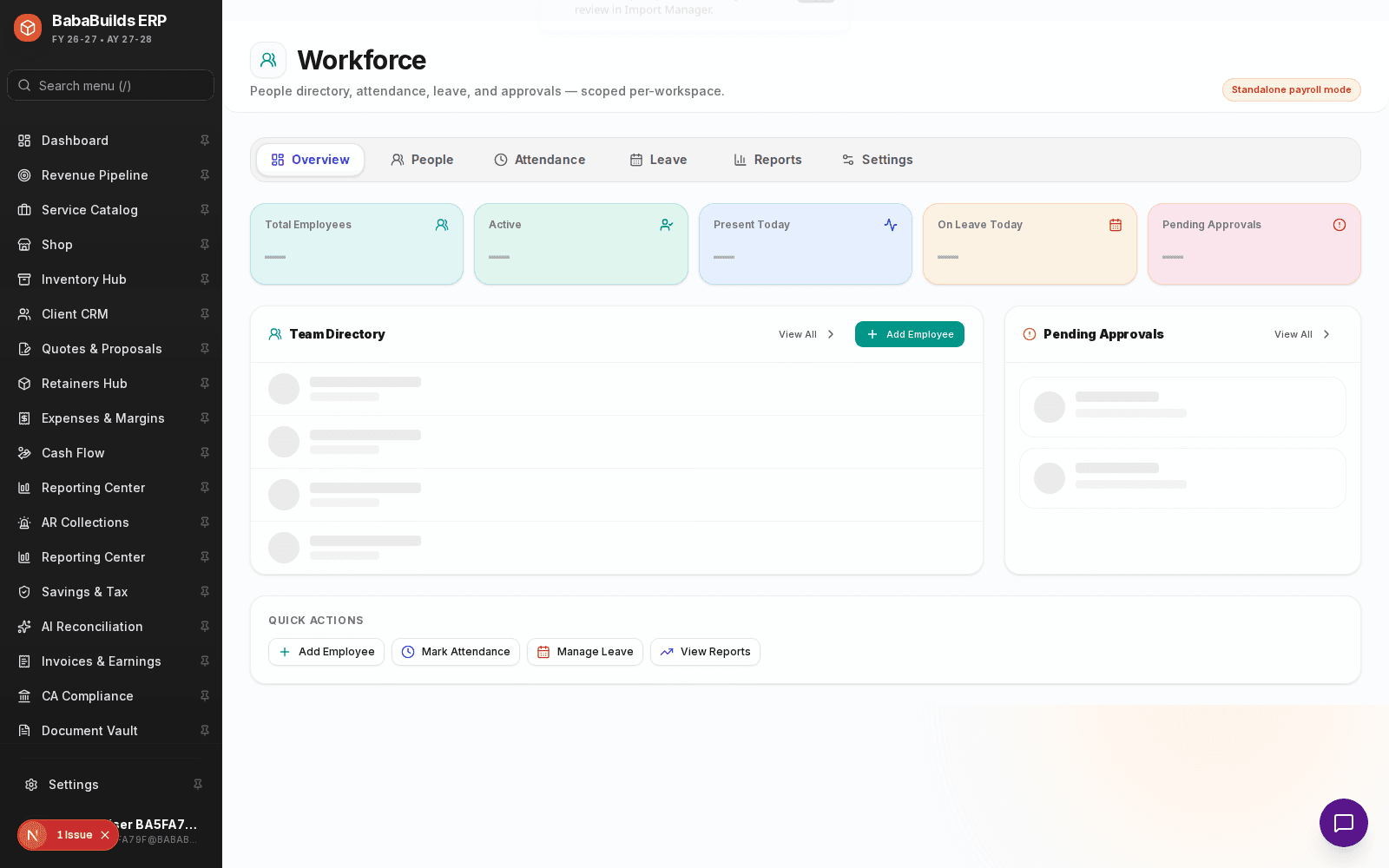
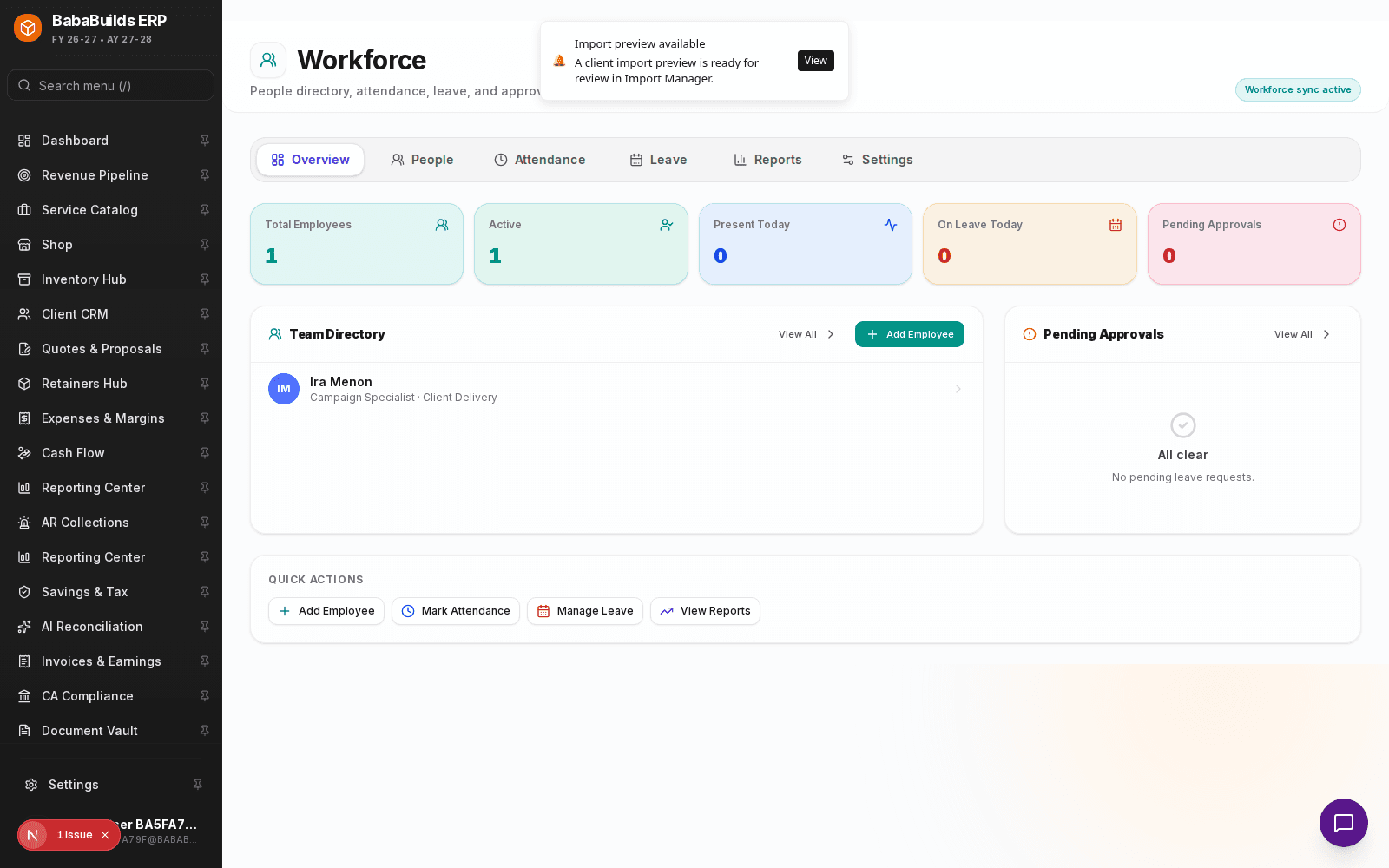
The Workforce module provides your team with a structured Human Resources workspace to manage people data, track attendance, and handle leave approvals centrally.
Operating Workflow
Enable the Module
Toggle on Workforce in Settings > Workspace Modules.
Define Organizational Structure
Create departments (e.g., Engineering, Sales, Finance) and assign managers to handle leave approvals.
Add Employee Profiles
Input employee details, including contact information, job titles, and hire dates.
Configure Leave Policies
Set the annual allowance for Sick Time, Vacation, and Unpaid Leave.
Daily HR Operations
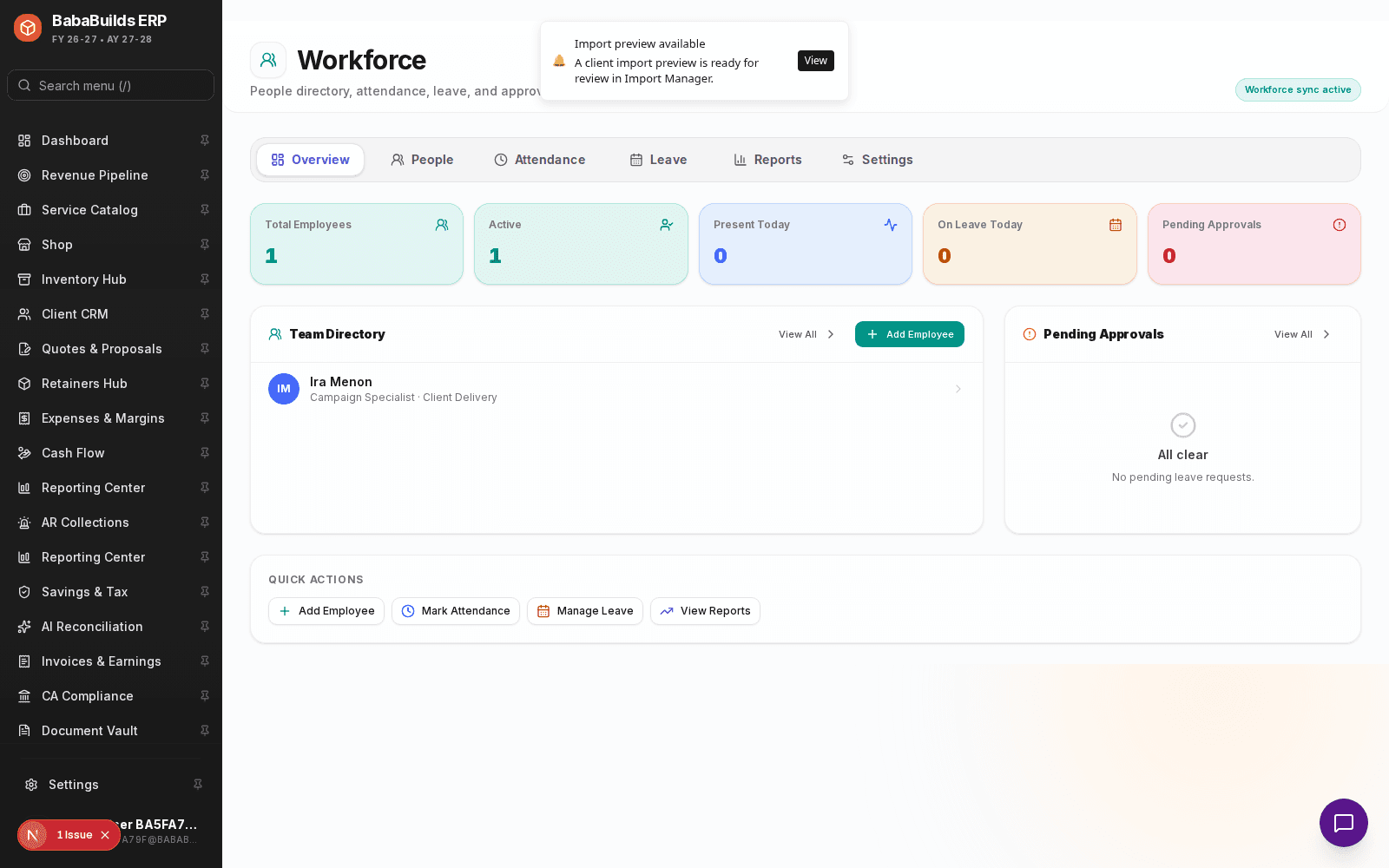
- Attendance Tracking: Employees can clock in/out, or managers can bulk-upload attendance logs.
- Leave Approvals: Managers receive notifications when a team member requests time off, allowing for one-click approval or denial.
Best Practices
Do
- Keep emergency contact information updated for all active employees.
- Review pending leave approvals weekly to ensure accurate availability forecasting for project planning.
Don't
- Hard-delete an employee's profile when they leave the company. Mark them as "Terminated" or "Resigned" to preserve historical records for audits.
Was this helpful?
Your feedback improves the Help Center for everyone.
No personal data required. Keep feedback focused on the workflow.
Still have questions?
Our support team is just an email away.