Guide #3
Managing Your Client CRM
Build a clean client master, reduce invoice errors, and improve relationship visibility across billing and collections.
Managing Your Client CRM
Your Client CRM is more than just an address book—it is the source of truth for billing identity, invoice behavior, tax treatment, and relationship history. Keeping this data clean ensures that every invoice generated is accurate and compliant.
Adding a New Client
When onboarding a new client, taking the time to accurately fill out their profile prevents downstream errors in invoicing and tax reporting.
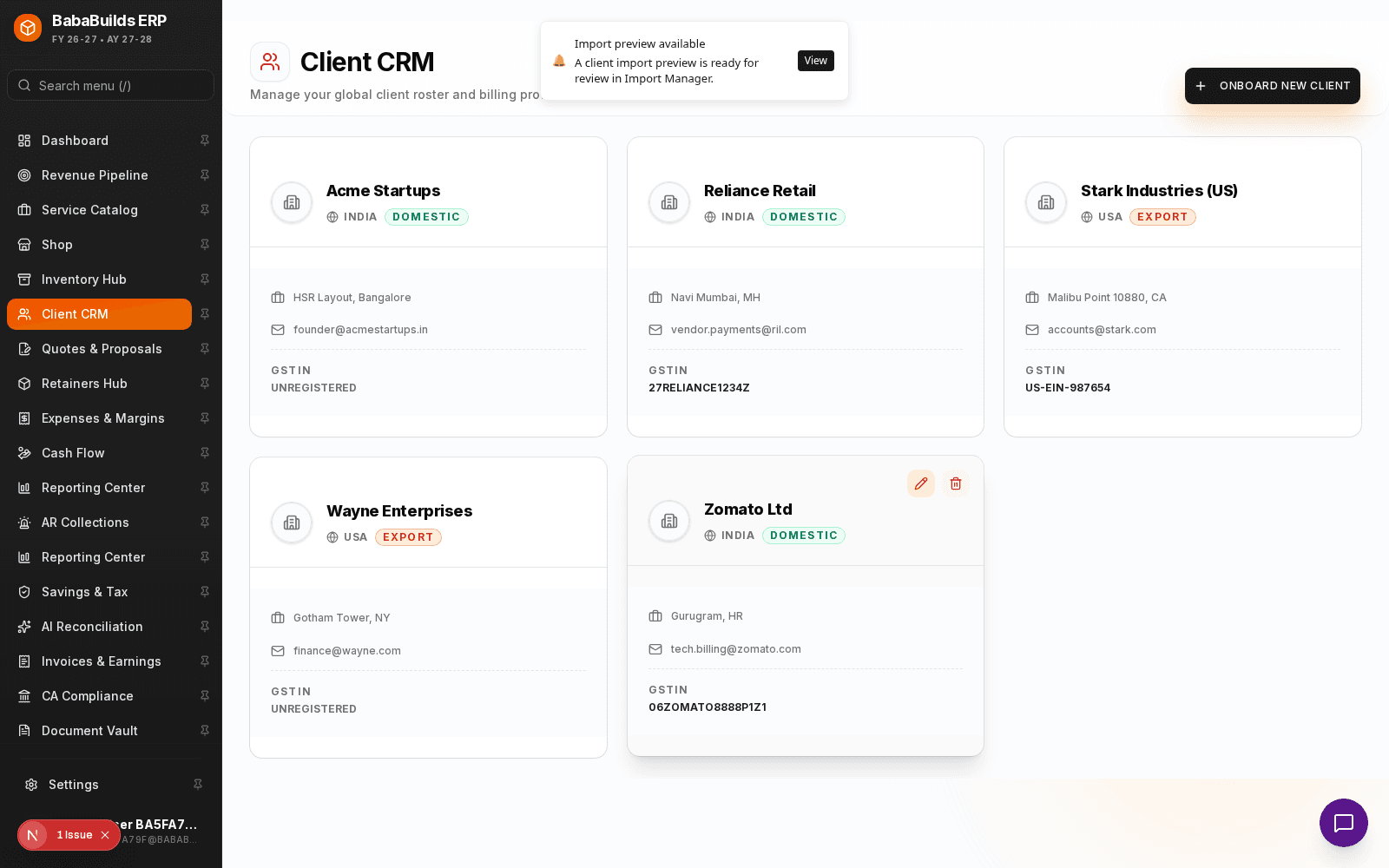
Navigate to Client CRM
Open the Client CRM module from the left sidebar navigation.
Initiate Creation
Click the Add New Client button in the top right corner.
Enter Core Details
Provide the client's legal business name, primary contact email, and phone number.
Configure Billing & Tax Settings
Crucially, select the correct tax jurisdiction (e.g., Domestic vs. Export) and enter their tax identification numbers (like GSTIN or VAT ID).
Save and Verify
Click Save Client. Review the newly created profile to ensure all details are correct.
Detailed Profile Configuration
For complex billing scenarios, you'll need to utilize the detailed profile fields.
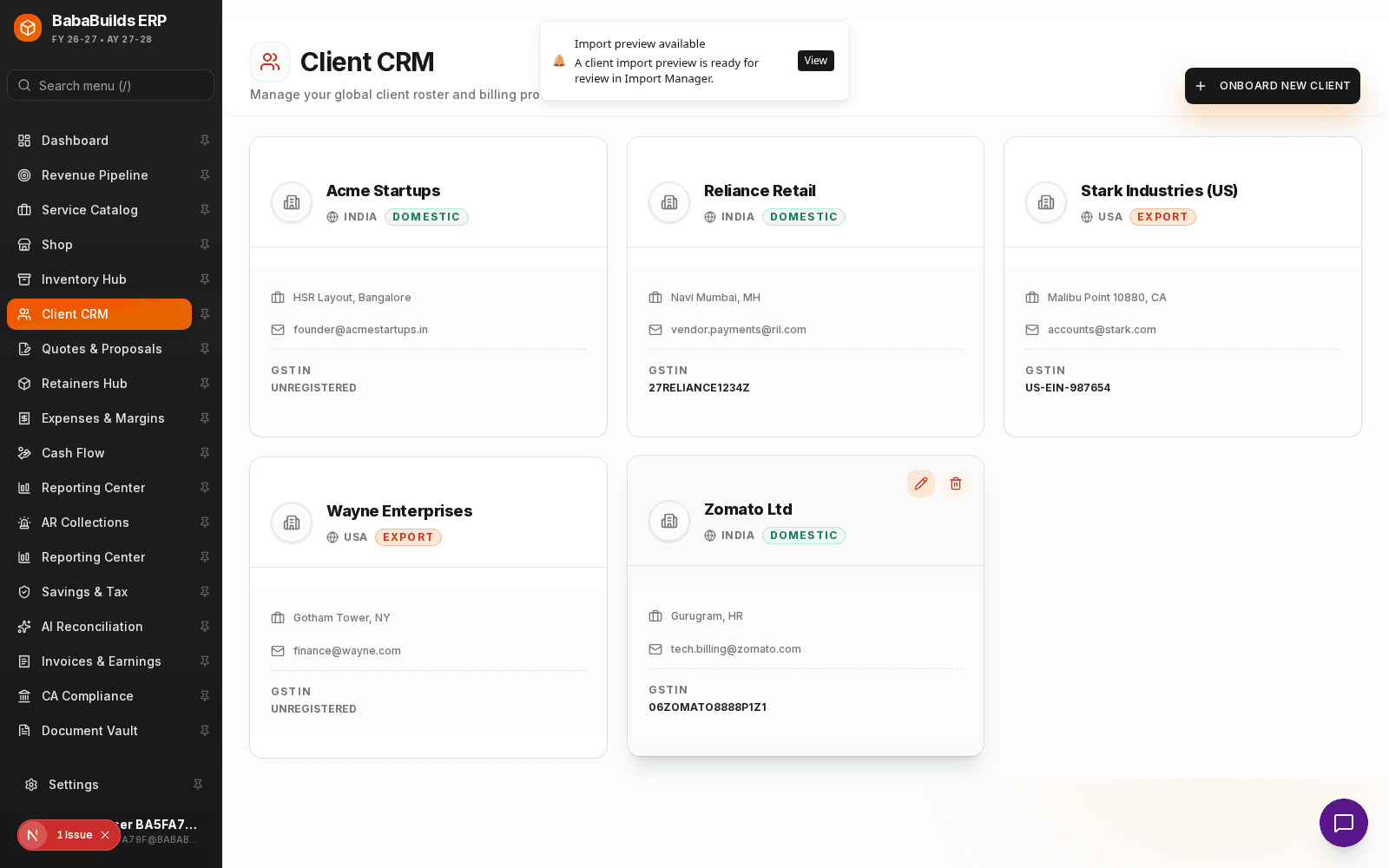
- Billing Address vs. Shipping Address: Ensure these are distinguished if your client requires physical product delivery versus digital services.
- Default Currency: If dealing with international clients, set their default currency here to automatically apply it to future invoices.
- Payment Terms: Set default payment terms (e.g., Net 30, Due on Receipt) that will auto-populate when drafting invoices for this client.
Best Practices
Do
- Always verify a client's Tax ID (e.g., GSTIN) before saving to ensure invoice compliance.
- Keep primary contact emails updated, as these are used for automated invoice delivery.
Don't
- Create duplicate client records for different departments of the same company; use the notes or secondary contacts feature instead.
- Leave the tax jurisdiction blank, as this will cause errors when attempting to generate invoices.
Troubleshooting
| Problem | Likely reason | Fix | |---|---|---| | Cannot generate invoice for client | Missing tax jurisdiction | Edit the client profile and select Domestic or Export. | | Invoices sent to wrong email | Outdated primary contact | Update the primary contact email in the client's CRM profile. | | Duplicate client records | Manual entry error | Currently, manual deletion or merging is required. Check records carefully before adding new ones. |
Was this helpful?
Your feedback improves the Help Center for everyone.
No personal data required. Keep feedback focused on the workflow.
Still have questions?
Our support team is just an email away.