Guide #17
Optional Module: AR Aging + Collections Centre
Enable AR Collections to prioritize overdue invoices and run reminder/collection workflows.
Optional Module: AR Aging + Collections Centre
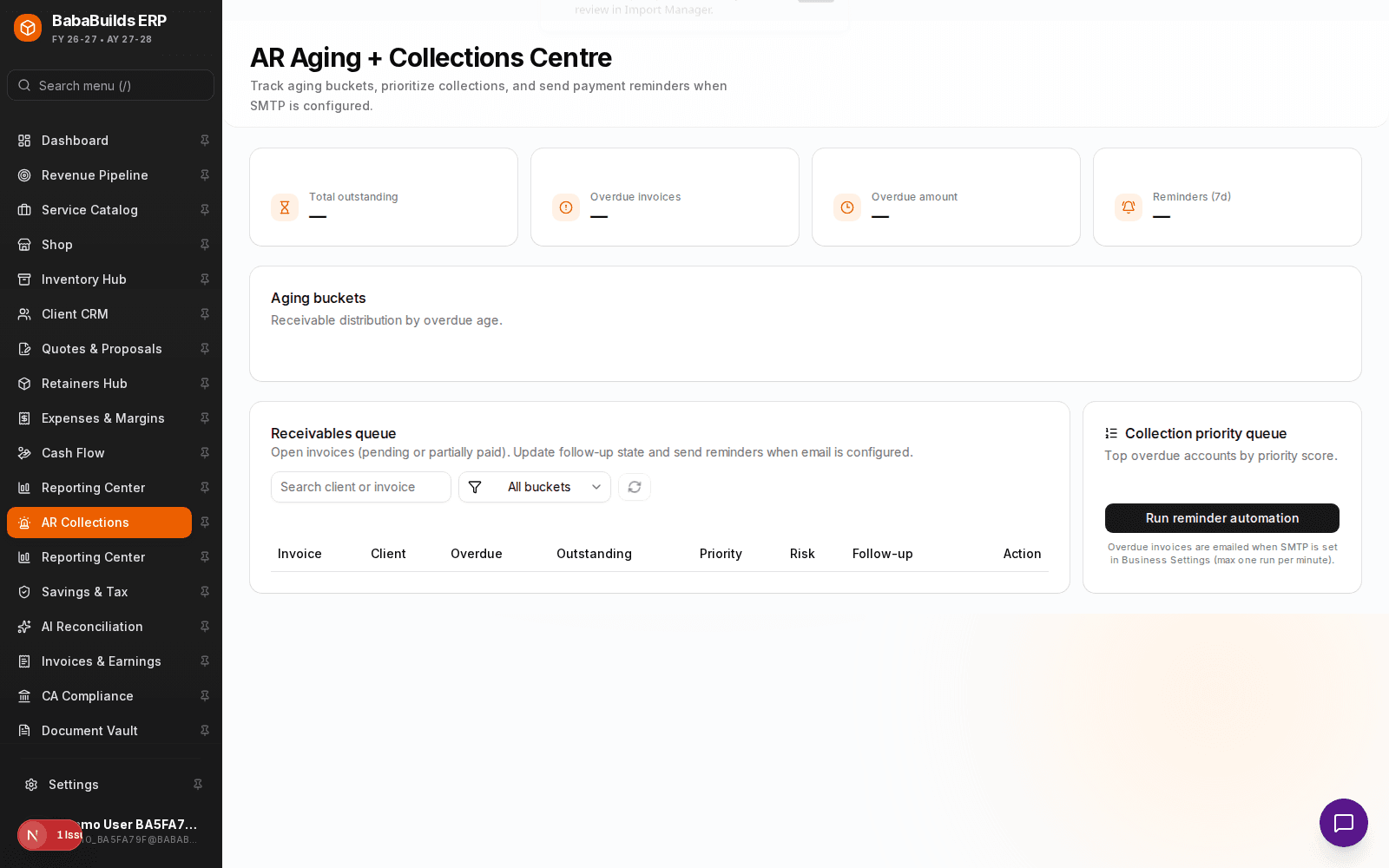
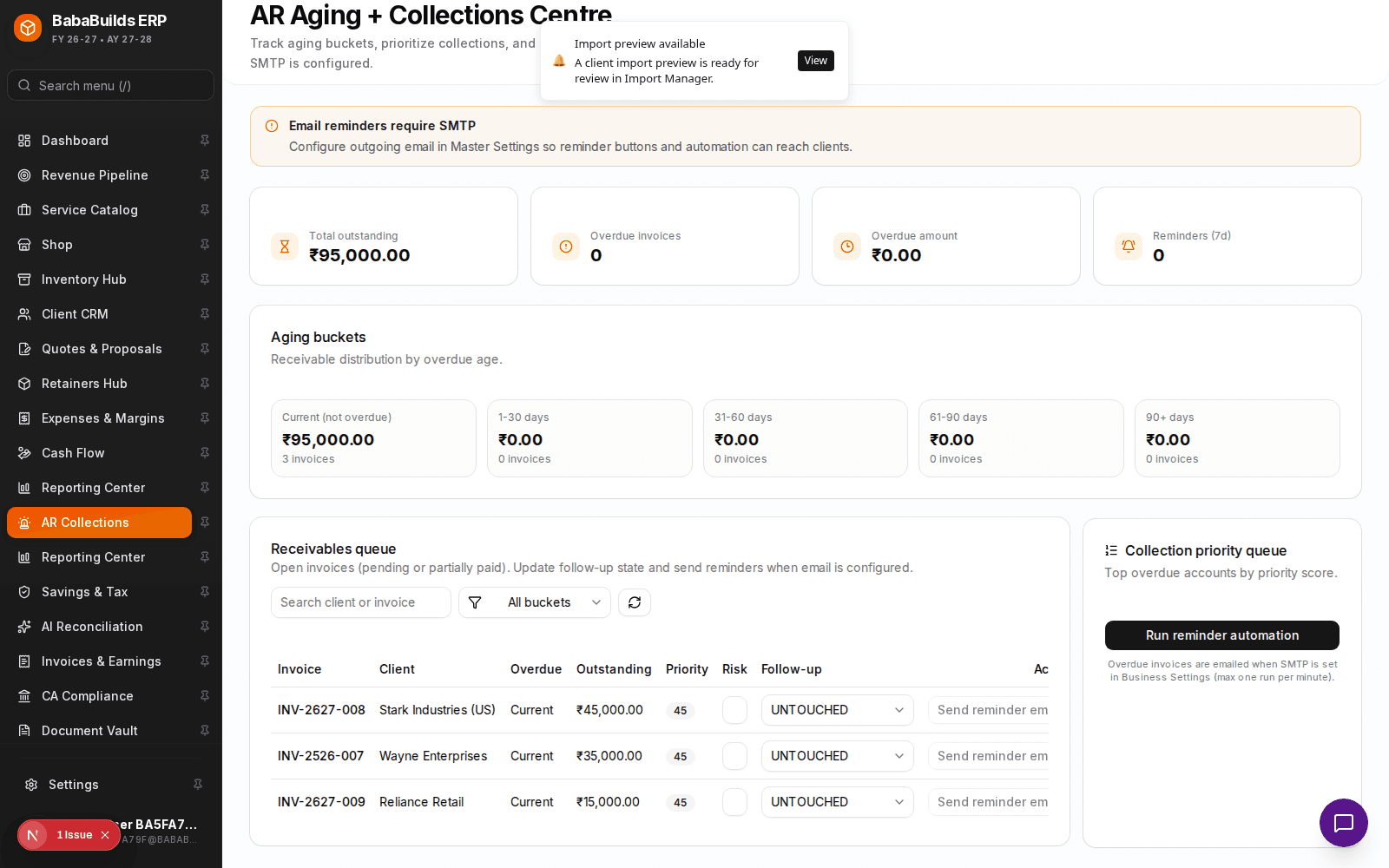
The AR (Accounts Receivable) Collections module improves cash recovery by surfacing aging buckets, building priority queues, and facilitating automated follow-up actions for overdue invoices.
Setting Up Collection Workflows
Enable the Module
Toggle on AR Aging + Collections in Settings > Workspace Modules.
Review the Aging Report
Check your receivables broken down by bucket: 1-30 days, 31-60 days, 61-90 days, and 90+ days overdue.
Configure Reminders
Set up automated email cadences to notify clients when invoices become 3, 7, and 14 days overdue.
Executing Follow-ups
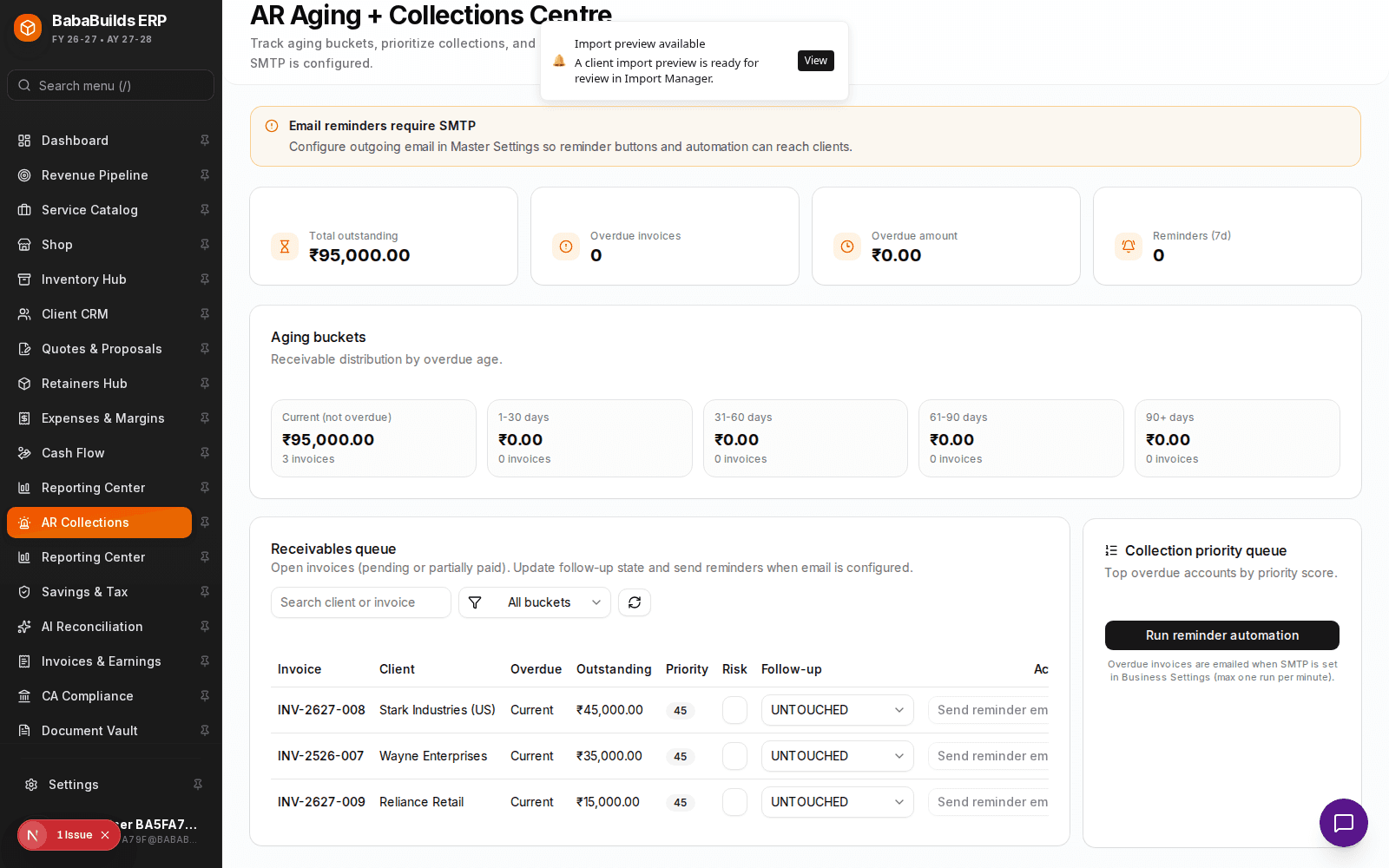
- Priority Queue: The system automatically flags high-value invoices that are severely overdue, creating a daily "call list" for your finance team.
- Promise to Pay: Log notes when a client promises to pay on a specific date, pausing automated reminders until that date passes.
Best Practices
Do
- Focus human intervention (phone calls) on the 60+ day bucket, letting automated emails handle the 1-30 day bucket.
- Escalate chronic late-payers to upfront retainer billing models to reduce future risk.
Don't
- Send aggressive automated emails to enterprise clients whose standard procurement process naturally takes 45-60 days. Exclude them from automated cadences.
Was this helpful?
Your feedback improves the Help Center for everyone.
No personal data required. Keep feedback focused on the workflow.
Still have questions?
Our support team is just an email away.