Guide #13
Optional Module: Payroll
Enable Payroll and configure salary components, payroll schedules, and controlled run operations.
Optional Module: Payroll
Payroll supports end-to-end salary processing with a controlled run lifecycle and posting safeguards to ensure your team is paid accurately and on time.
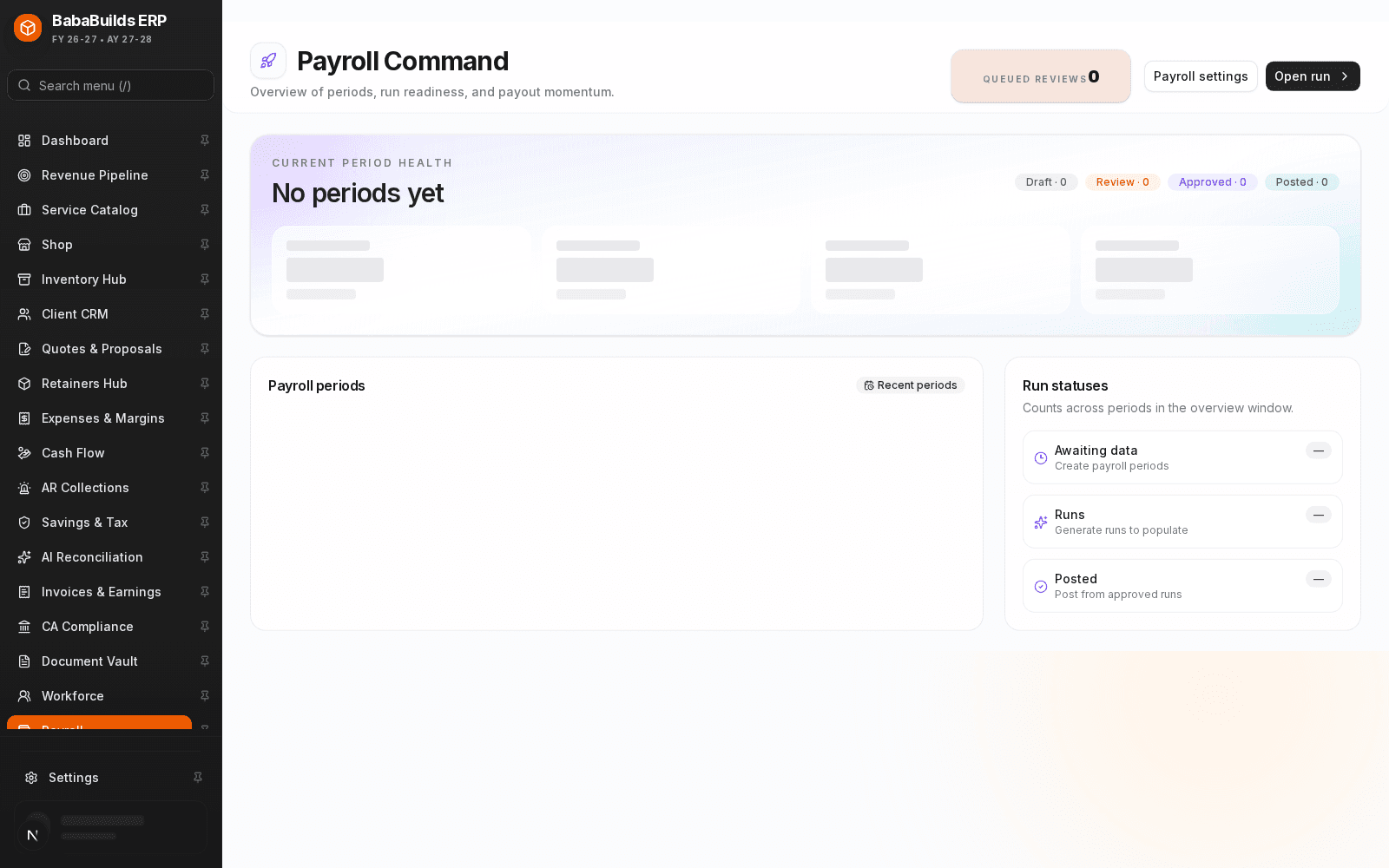
Enabling and Configuring Payroll
To begin using the Payroll module, you must first enable it in your Workspace Settings and configure your standard salary components.
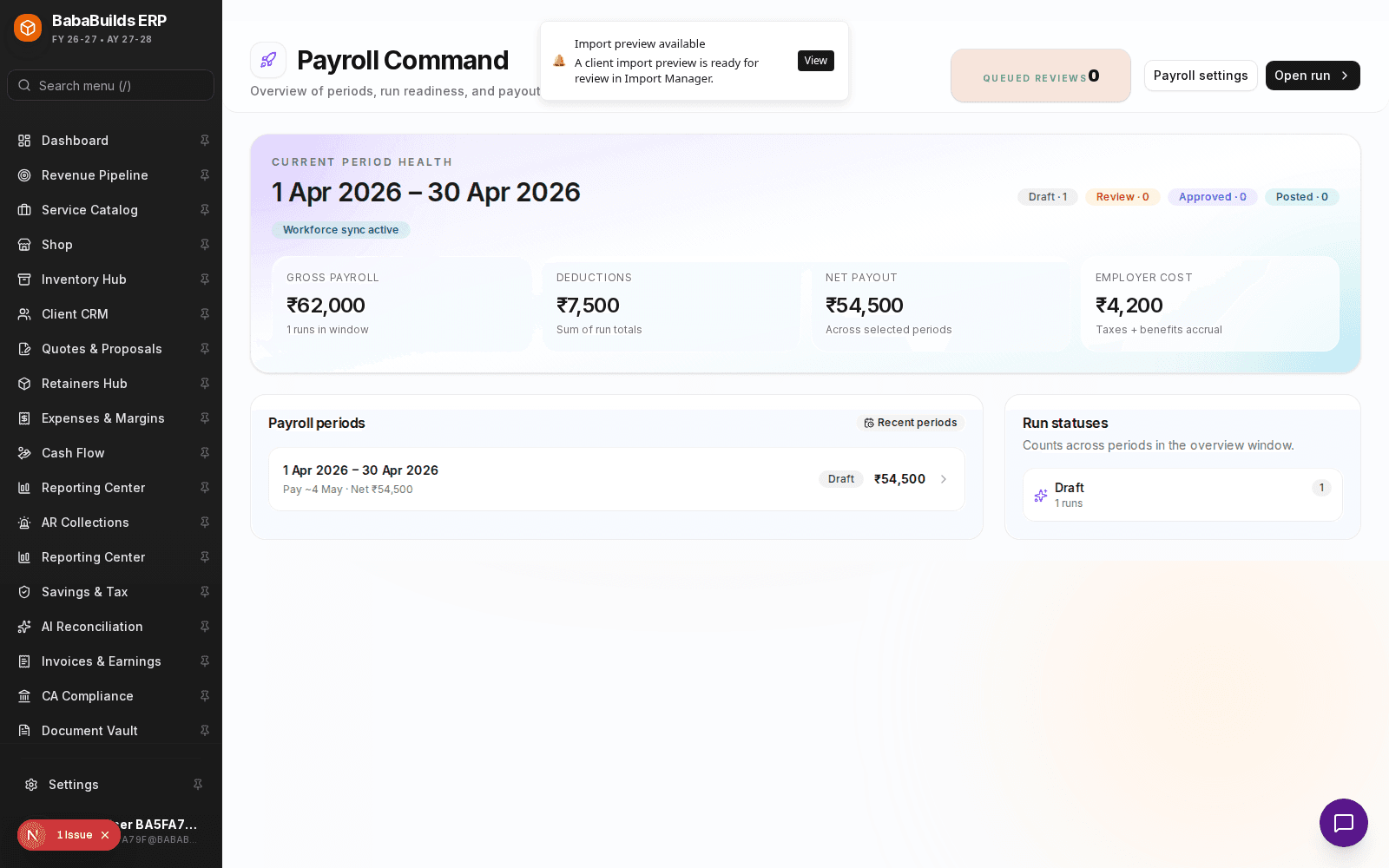
Enable the Module
Go to Settings > Workspace Modules and toggle on Payroll.
Define Salary Components
Set up the earning components (e.g., Basic Pay, Allowances, Bonuses) and deductions (e.g., Taxes, Provident Fund, Health Insurance).
Assign to Employees
Link these pay components to individual employee profiles (requires the Workforce module to be active).
Executing a Payroll Run
Running payroll is a structured, multi-step process to prevent costly errors.
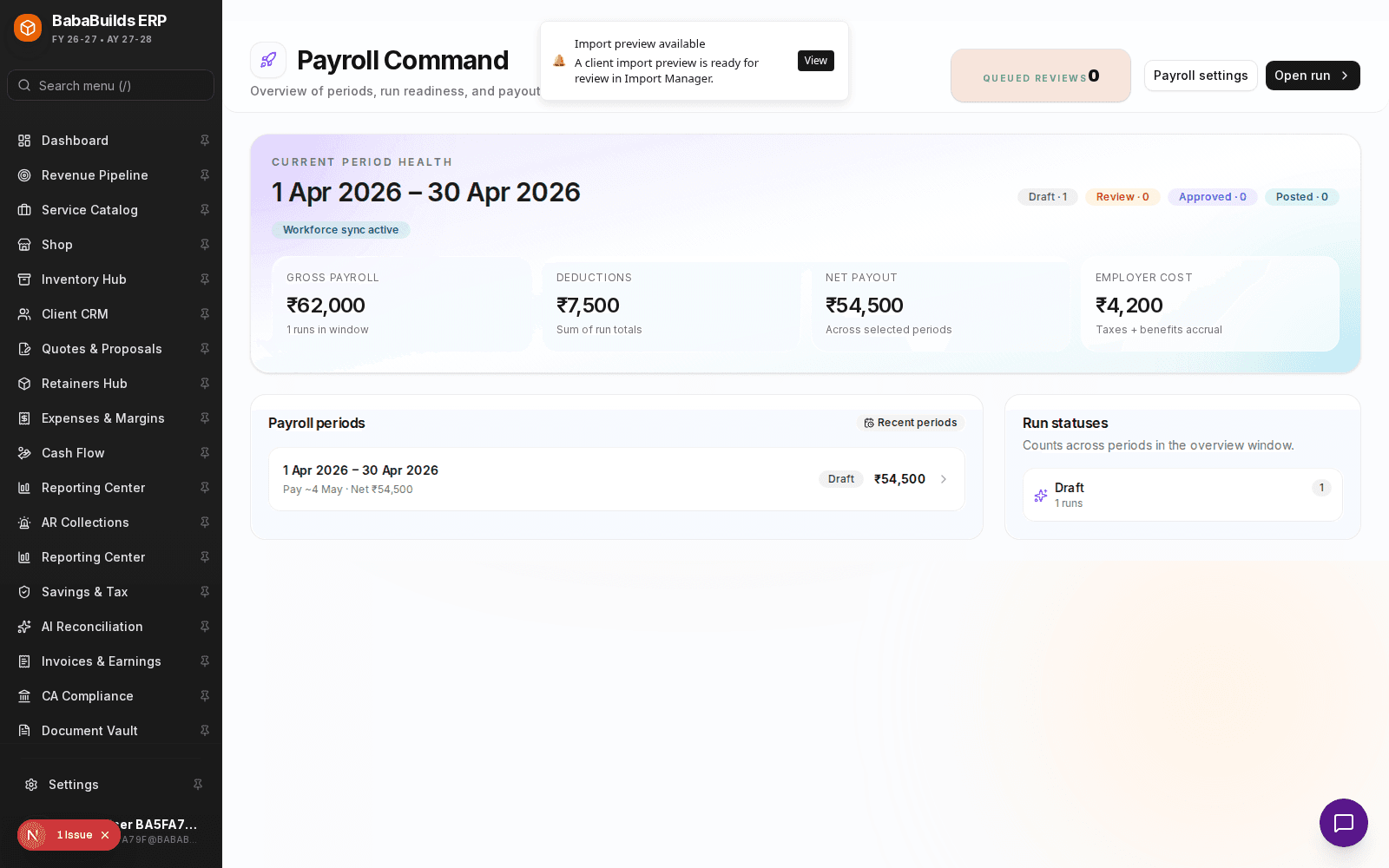
Draft the Run
Initiate a new payroll run for the current period. The system will auto-calculate based on employee profiles and attendance data.
Review and Adjust
Review the drafted payslips. Manually add any one-off bonuses, overtime, or unpaid leave deductions.
Finalize and Post
Once approved, finalize the run. This locks the payslips and generates the necessary export files for your bank.
Best Practices
Do
- Run a "test" payroll cycle for a single department before rolling it out company-wide to ensure all tax deductions are calculating correctly.
- Always review the gross-to-net variance report before finalizing the run.
Don't
- Finalize a run if attendance data from the Workforce module is incomplete.
- Delete an employee profile mid-month; always mark them as "Terminated" to preserve their payroll history for tax purposes.
Was this helpful?
Your feedback improves the Help Center for everyone.
No personal data required. Keep feedback focused on the workflow.
Still have questions?
Our support team is just an email away.