Guide #2
Generating, Sending, and Collecting Invoices
Advanced guide to drafting invoices, delivering PDFs, avoiding duplicates, and accelerating collections with payment links.
Generating, Sending, and Collecting Invoices
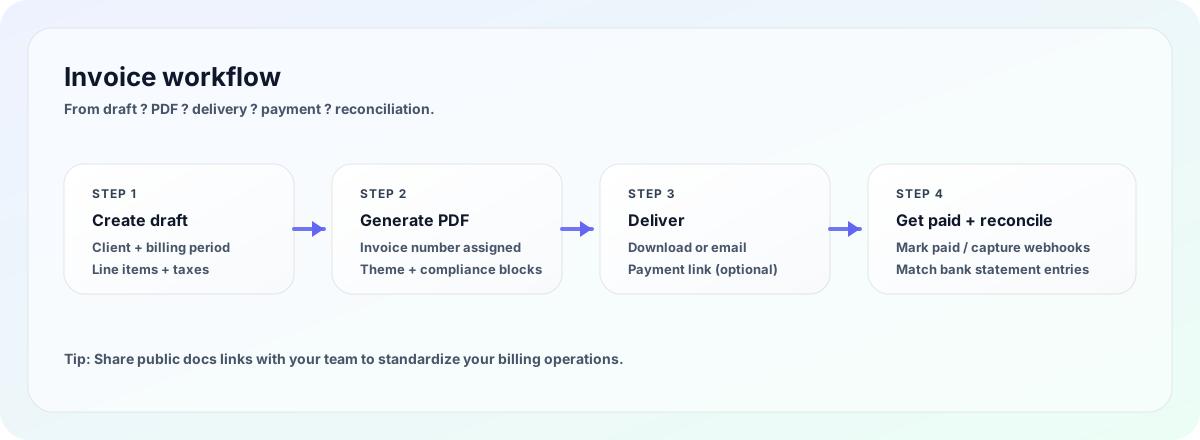
This guide covers the complete invoice lifecycle: draft, validate, generate, send, and collect.
Before you start
Ensure these prerequisites are done:
- Settings profile is complete
- Client exists in CRM
- Service line items are ready
- SMTP is configured (for email)
- Gateway is connected (optional, for payment links)
Step-by-step invoice flow
Open New Invoice
Go to Invoices & Earnings and click New Invoice.
Select client and period
Choose the client and billing month/date.
Add service lines
Add deliverables with clear names, rates, and totals.
Review taxes and totals
Confirm applicable tax logic and net payable amount.
Generate PDF
Click Generate Invoice. The system assigns an invoice number and stores the PDF.
Invoice numbering logic
Format: INV/FY/SEQ
Example: INV/26-27/014
26-27: financial year014: sequence number in that year
Numbers are unique and traceable for audit.
Send invoice by email
Enable Send Invoice via Email before generating, or re-send from invoice history later.
Send a test invoice to yourself after any SMTP change.
Accept online payments from invoice
When Stripe/Razorpay is active, PDF includes a clickable payment link.
Client flow:
- Open PDF
- Click pay link
- Complete payment
- Payment updates in records (based on your workflow)
See: Connecting Razorpay & Stripe
Duplicate generation protection
If an identical invoice is generated repeatedly in a short window, ERP blocks duplicate creation to protect against double-billing.
Re-send, download, and recovery operations
From invoice list/dashboard:
- Download for offline sharing
- Re-send for missed client emails
- Follow collections workflow for overdue invoices
Invoice quality checklist
Before sending, verify:
- Client legal details
- Tax treatment (domestic/export)
- Bank details on PDF
- Line item descriptions are specific
- Payment terms are clear
Troubleshooting
| Problem | What it usually means | What to do | |---|---|---| | PDF not generating | Missing required fields or temporary service failure | Recheck client, date, and line items; retry once | | Email not delivered | SMTP is not configured or credentials expired | Go to Settings and verify SMTP host/port/app password | | Wrong tax mode on invoice | Client export/domestic flag is incorrect | Fix client tax profile in CRM and regenerate | | No payment link in PDF | Gateway not connected or not active | Reconnect Stripe/Razorpay and generate a fresh invoice |
Do / Don't
Do
- Keep line items specific (deliverable + period).
- Send a test invoice to yourself after major settings changes.
- Review totals and taxes before final send.
Don't
- Reuse vague descriptions like "Services rendered".
- Assume old invoices will auto-update after settings changes.
- Share invoice PDFs without checking remittance details.
Related guides
- Configuring Your Business Profile & Workspace Settings
- Connecting Razorpay & Stripe
- Optional Module: AR Aging + Collections Centre
Article details
- Last reviewed: 2026-04-21
- Owner: Finance Operations Docs
- Audience: Founders, Finance Ops, Billing Managers
Need help?
Email [email protected] with invoice number and issue summary.
FAQ
Can I edit a generated invoice PDF directly?
No. Update invoice data in ERP and generate a new version to keep records clean.
Why is my invoice number not sequential to last month?
Numbering follows financial-year sequence and integrity controls, not just monthly grouping.
Can I resend an invoice without regenerating?
Yes. Use the re-send action from invoice history where available.
Was this helpful?
Your feedback improves the Help Center for everyone.
No personal data required. Keep feedback focused on the workflow.
Still have questions?
Our support team is just an email away.